Brand List Section
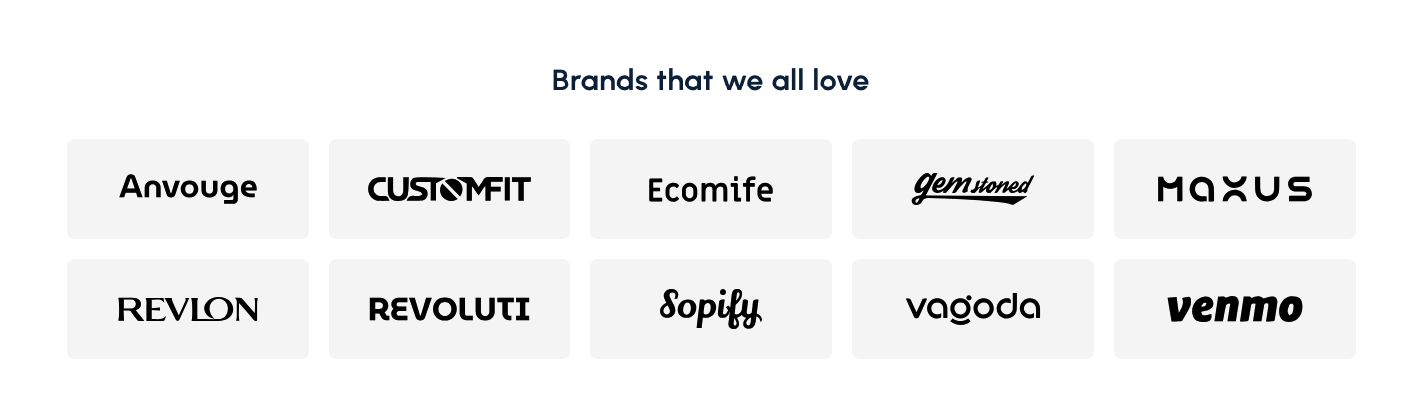
Highlight trusted brand logos in a clean grid with adjustable spacing and optional links.
Overview
The Brand List Section gives you a simple way to display partner or featured brand logos in a uniform grid. It works well for building trust, showcasing collaborators, or emphasizing the variety of brands your store carries.
How to add
Steps:
- In the theme editor (Customize), click Add section
- Select Brand list
- Save
Section Settings
Content
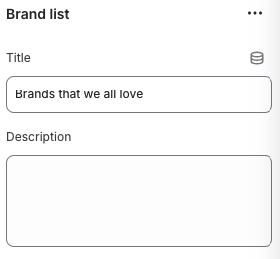
Title
- Main heading displayed above the grid of brand logos.
Description
- Optional supporting text that appears below the title to provide context.
Layout
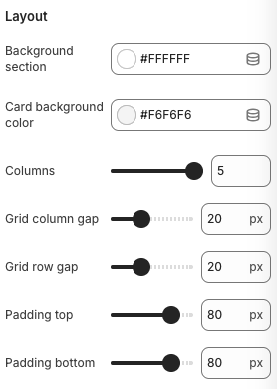
Background Section
- Description: Sets the background style for the section container (e.g., Transparent, Accent).
Card Background Color
- Description: Defines the background color applied behind each individual brand card.
Columns
- Range: 1 – 6
- Description: Determines how many brand cards appear per row on desktop devices.
Grid Column Gap / Grid Row Gap
- Range: 0px – 60px
- Description: Controls horizontal and vertical spacing between brand cards.
Padding Top / Padding Bottom
- Range: 0px – 160px
- Description: Adds vertical spacing around the entire section for breathing room.
Block Settings
Brand
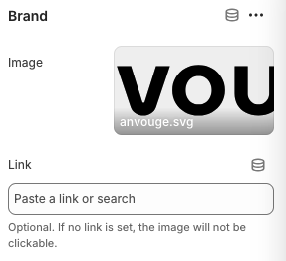
Image
- Upload the brand logo (SVG recommended for crisp scaling). The image scales to fit the card while maintaining aspect ratio.
Link
- Optional URL that makes the brand card clickable. Leave blank for a non-interactive display.
Best Practices
- Use high-resolution, monochrome versions of logos to maintain a cohesive visual style.
- Keep card background colors subtle so logos remain the focal point.
- Balance the number of columns with available logos—fill rows completely to avoid uneven spacing.
- Group brands by relevance (e.g., category, partner level) and use the description to explain the grouping.
- Test the section on mobile to confirm logos remain legible and spacing feels comfortable.
Troubleshooting
Logos look blurry
- Upload SVG files or higher-resolution PNGs with transparent backgrounds.
Cards feel cramped
- Decrease the column count or increase grid gaps to give each logo more breathing space.
Logos not centered
- Check that the source images have consistent padding; trim excess whitespace before uploading.
Links not working
- Verify each brand block has a valid URL and that it includes the proper protocol (e.g.,
https://).