Featured Product Set Section
This section showcases curated product sets with interactive hotspots and combined pricing.
Overview
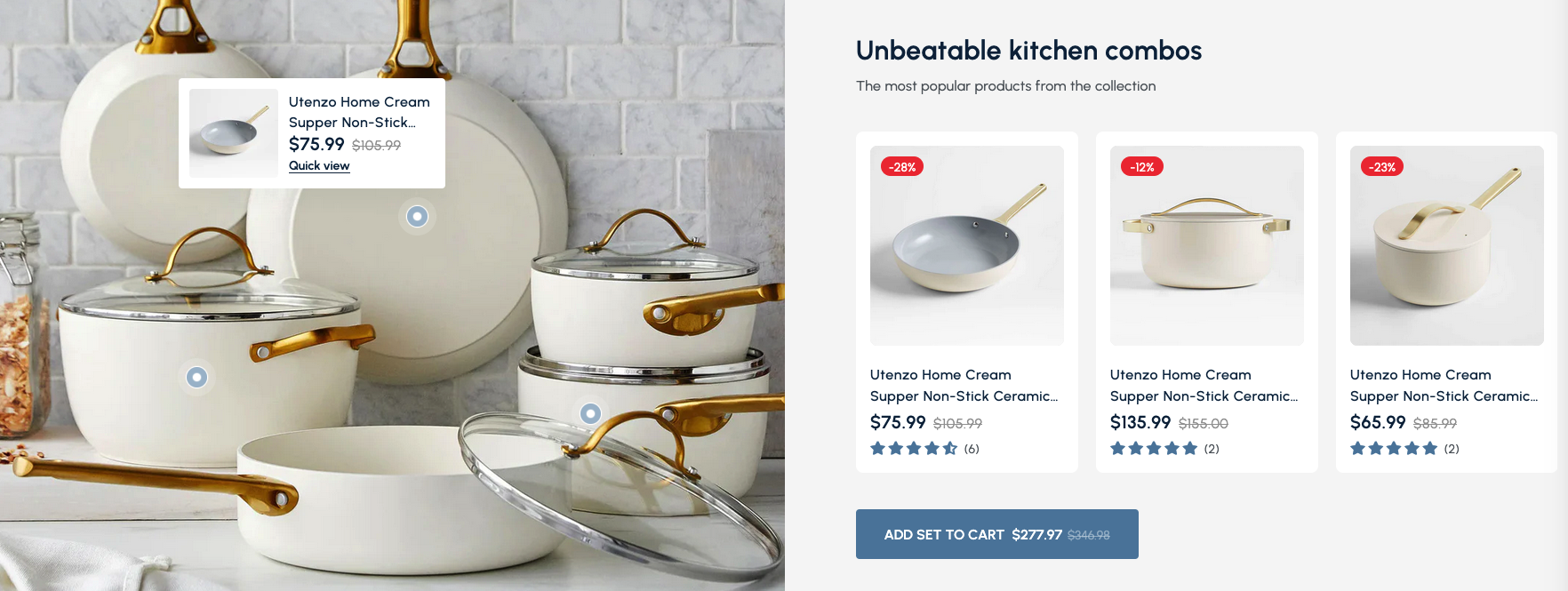
The Featured Product Set Section is a powerful and interactive component designed to highlight a specific collection of products, often presented as a bundle or curated set. This section combines a visually engaging background image with interactive hotspots and individual product cards, culminating in a convenient "Add Set to Cart" option.
The Featured Product Set Section is ideal for promoting product bundles, new arrivals, or best-selling collections. It provides a dynamic way for customers to explore related products and purchase them together, with interactive hotspots that link directly to individual products within the set.
How to add
Steps:
- In the theme editor (Customize), click Add section
- Select Featured product set
- Save
Section Settings
General Settings
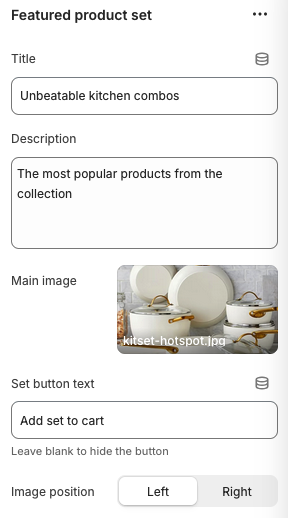
Title
- Main heading displayed above the featured product set
Description
- Subtitle or descriptive text below the main title
Main Image
- Format: JPG, PNG, WebP
- Recommended Size: 1920 x 1080px
- Description: Background image showcasing the product set
Set Button Text
- Text displayed on the call-to-action button
Image Position
- Options: Left, Right
- Description: Controls the placement of the main image relative to product cards
Slider Settings
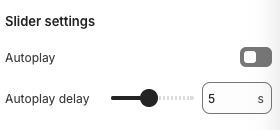
Autoplay
- Automatically advances to the next set of products
Autoplay Delay
- Note: Works when autoplay is enabled
- Description: Time between automatic slide transitions
Layout Settings
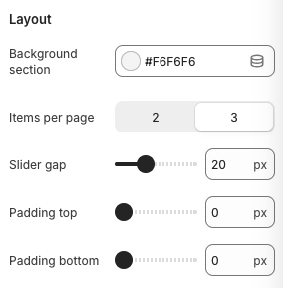
Background Section
- Background color for the entire section
Items Per Page
- Number of products visible at once in the slider
Slider Gap
- Spacing between product cards
Padding Top
- Top padding for the section
Padding Bottom
- Bottom padding for the section
Block Settings
Product Settings
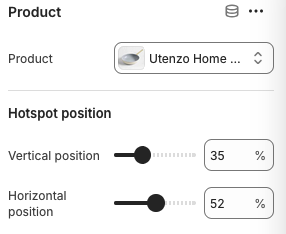
Product Selection
- Select the specific product from your Shopify catalog
Hotspot Position
- Vertical Position:
- Controls vertical placement of hotspot on main image
- Horizontal Position:
- Controls horizontal placement of hotspot on main image
Best Practices
Content Strategy
- Choose products that work well together as a set
- Use high-quality background images that showcase all products
- Create compelling titles that emphasize the value of the bundle
- Include clear descriptions of what's included in the set
Visual Design
- Position hotspots strategically on the main image
- Ensure hotspots are easily visible and clickable
- Use consistent styling across product cards
- Test the layout on different screen sizes
Product Selection
- Feature complementary products that customers would buy together
- Include products with good ratings and reviews
- Consider seasonal or trending product combinations
- Ensure all products are in stock or clearly marked as sold out
Pricing Strategy
- Offer meaningful discounts for purchasing the set
- Clearly display both individual and combined prices
- Highlight the savings customers get from buying the set
- Make the "Add Set to Cart" button prominent and compelling
Troubleshooting
Common Issues
Hotspots not appearing
- Verify products are selected for each hotspot
- Check hotspot position values are within image bounds
- Ensure main image is properly uploaded
- Test hotspot visibility on different screen sizes
Products not displaying
- Verify selected products exist and are active
- Check product visibility settings in Shopify admin
- Ensure product images are uploaded
- Test product card loading
Set button not working
- Verify all products in set are available
- Check for JavaScript conflicts
- Ensure button text is not empty
- Test button functionality on different devices
Layout issues
- Check image position settings
- Verify slider gap and padding values
- Test responsive breakpoints
- Ensure proper CSS loading
Mobile responsiveness problems
- Check mobile slider gap settings
- Verify mobile padding settings
- Test hotspot touch targets on mobile
- Ensure product cards are properly sized
Performance issues
- Optimize main background image
- Reduce number of products if needed
- Check image file sizes
- Consider lazy loading for product images