Product Collection Slider Section
This section displays products from a selected collection in a horizontal slider format with navigation controls.
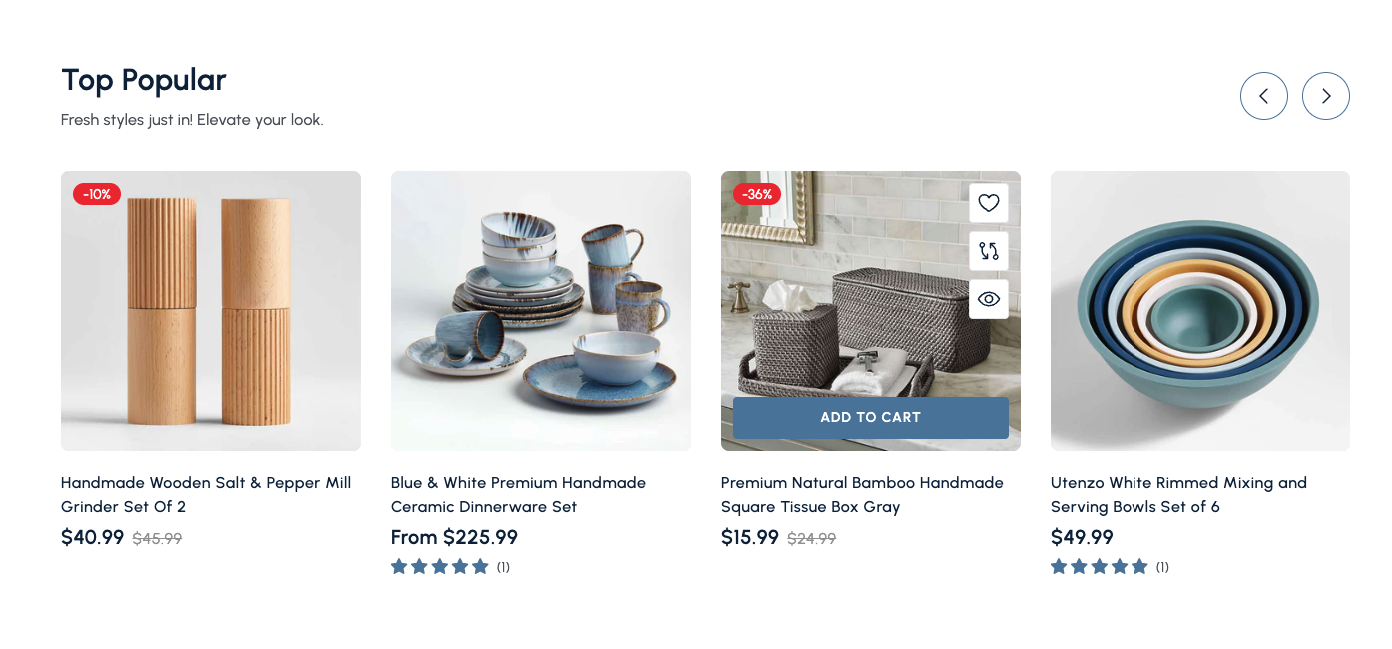
Overview
The Product Collection Slider Section is a dynamic component that displays products from a specific collection in a horizontal slider format. Perfect for showcasing featured products, best sellers, or new arrivals, this section allows customers to browse through products with smooth navigation controls.
The Product Collection Slider Section provides an engaging way to showcase products from your collections. It features a horizontal scrolling layout with navigation arrows, making it easy for customers to browse through multiple products without leaving the page.
How to add
Steps:
- In the theme editor (Customize), click Add section
- Select Product collection slider
- Save
Section Settings
General Settings
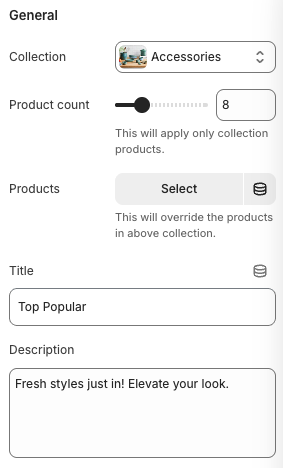
Collection
- Description: Select which collection to display products from
- Note: Products will be pulled from the selected collection
Product Count
- Note: This will apply only to collection products
- Description: Number of products to display in the slider
Products (Override)
- Note: This will override the products in the above collection
- Description: Manually select specific products to display
Title
- Main heading displayed above the product slider
Description
- Subtitle or descriptive text below the main title
Slider Settings
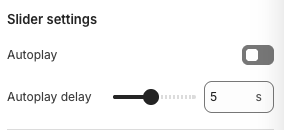
Autoplay
- Automatically advances to the next set of products
Autoplay Delay
- Note: Works when autoplay is enabled
- Description: Time between automatic slide transitions
Layout Settings
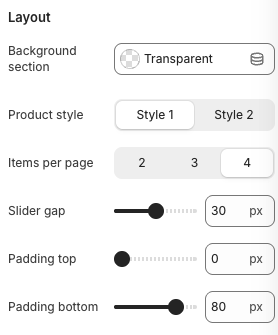
Background Section
- Background styling for the section
Product Style
- Visual style for product cards
Items Per Page
- Number of products visible at once
Slider Gap
- Spacing between product cards
Padding Top
- Top padding for the section
Padding Bottom
- Bottom padding for the section
Best Practices
Content Strategy
- Choose collections with high-quality product images
- Use descriptive, engaging titles
- Keep descriptions concise and compelling
- Select collections that align with your marketing goals
Product Selection
- Feature your best-selling products
- Showcase new arrivals or seasonal items
- Include products with good ratings and reviews
- Ensure product images are high-quality and consistent
Layout Optimization
- Use 3-4 items per page for optimal viewing
- Maintain consistent spacing between products
- Test different product styles for your brand
- Consider mobile viewing experience
Performance
- Limit product count to 8-12 for optimal performance
- Use appropriate autoplay delays (3-5 seconds)
- Optimize product images for web delivery
- Consider lazy loading for better page speed
Troubleshooting
Common Issues
Products not displaying
- Verify the selected collection exists and has products
- Check collection visibility settings
- Ensure products are published and active
- Verify product images are uploaded
Slider not working
- Check if JavaScript is enabled
- Verify no conflicts with other scripts
- Test navigation arrows functionality
- Ensure proper CSS is loaded
Autoplay not functioning
- Verify autoplay is enabled in settings
- Check autoplay delay is set above 0
- Some browsers block autoplay on mobile
- Test on different devices and browsers
Layout issues
- Check items per page settings
- Verify slider gap settings
- Test different product styles
- Ensure responsive breakpoints are working
Mobile responsiveness problems
- Check mobile slider gap settings
- Verify mobile padding settings
- Test touch navigation on mobile devices
- Ensure product cards are appropriately sized
Performance issues
- Reduce product count if needed
- Optimize product images
- Consider disabling autoplay on mobile
- Check for JavaScript conflicts