Multicolumn Section
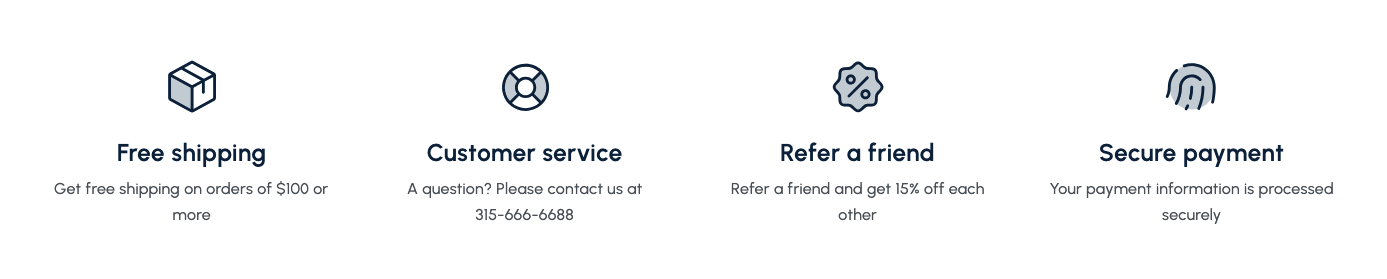
This versatile section allows you to display content in multiple columns with customizable icons, headings, descriptions, and links.
Overview
The Multicolumn Section is a highly versatile component designed to present information in an organized and visually appealing grid layout. It's ideal for showcasing key features, services, benefits, or any content that can be broken down into distinct, digestible blocks.
This section allows you to create multiple columns, each containing an icon, a heading, a description, and an optional call-to-action link. It's perfect for highlighting unique selling propositions, presenting service offerings, showcasing product features, or creating a concise information hub.
How to add
Steps:
- In the theme editor (Customize), click Add section
- Select Multicolumn
- Save
Section Settings
General Settings
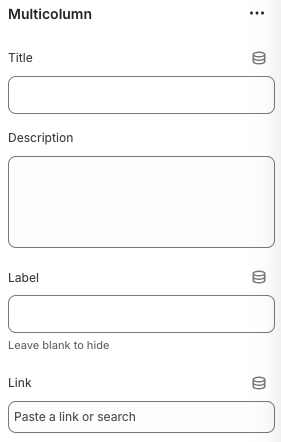
Title
- Main heading for the entire Multicolumn section
Description
- Brief introductory text for the section, displayed below the main title
Label
- Additional label text for the section
Link
- The destination URL for the section's main link
Layout Settings
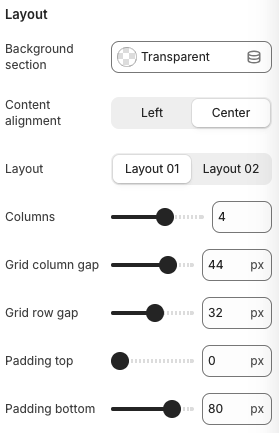
Background Section
- Background styling for the entire section
Content Alignment
- Options: Left, Center
- Description: Controls the alignment of text content within columns
Layout
- Options: Layout 01, Layout 02
- Description: Choose between different visual layouts for the columns
Columns
- Number of columns to display in the section
Grid Column Gap
- Horizontal spacing between columns
Grid Row Gap
- Vertical spacing between rows
Padding Top
- Top padding for the section
Padding Bottom
- Bottom padding for the section
Block Settings
Column Settings
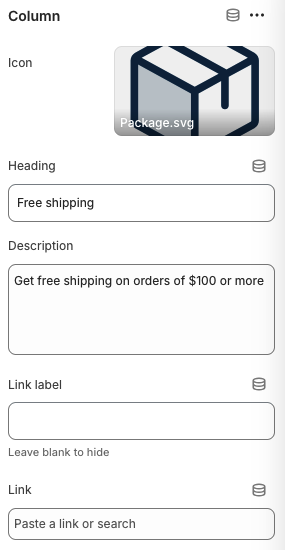
Icon
- Format: SVG recommended for scalability
- Description: Select or upload an icon to visually represent the column's content
Heading
- The main title for the individual column
Description
- Detailed text explaining the column's content or benefit
Link Label
- Text displayed on the call-to-action button/link for this column
Link
- The destination URL when the column's link is clicked
Best Practices
Content Strategy
- Use clear, concise headings that immediately communicate the value proposition
- Write descriptions that are informative and benefit-focused
- Choose icons that clearly represent the content or service
- Keep content consistent in tone and length across all columns
Visual Design
- Select icons that are visually consistent in style and size
- Ensure good contrast between icons and background
- Use appropriate spacing between columns for readability
- Test how the layout looks on different screen sizes
User Experience
- Make sure call-to-action links are relevant and functional
- Ensure all links work correctly and lead to appropriate destinations
- Test the section on mobile devices to ensure good usability
- Consider the user journey and how this section fits into the overall page flow
Layout Optimization
- Use the appropriate number of columns for your content (1-4)
- Adjust column gaps for optimal visual balance
- Consider mobile layout settings for responsive design
- Test different layout options (Layout 01 vs Layout 02)
Troubleshooting
Common Issues
Icons not displaying
- Check if the SVG file is properly uploaded
- Verify the icon file path is correct
- Ensure the SVG file is not corrupted
- Test with different icon formats if needed
Layout not responsive
- Check mobile layout settings
- Verify column count settings for mobile
- Test different screen sizes
- Ensure CSS is properly loaded
Columns overlapping
- Reduce the number of columns
- Increase column gaps
- Check for CSS conflicts
- Test on different devices
Links not working
- Verify URL is correctly entered
- Check for typos in the link
- Test link functionality
- Ensure no JavaScript conflicts
Content not aligned
- Check content alignment settings
- Verify text alignment in CSS
- Test on different screen sizes
- Ensure consistent styling
Mobile display issues
- Check mobile-specific settings
- Verify mobile column count
- Test touch targets
- Ensure readable text size