Store Locations Section
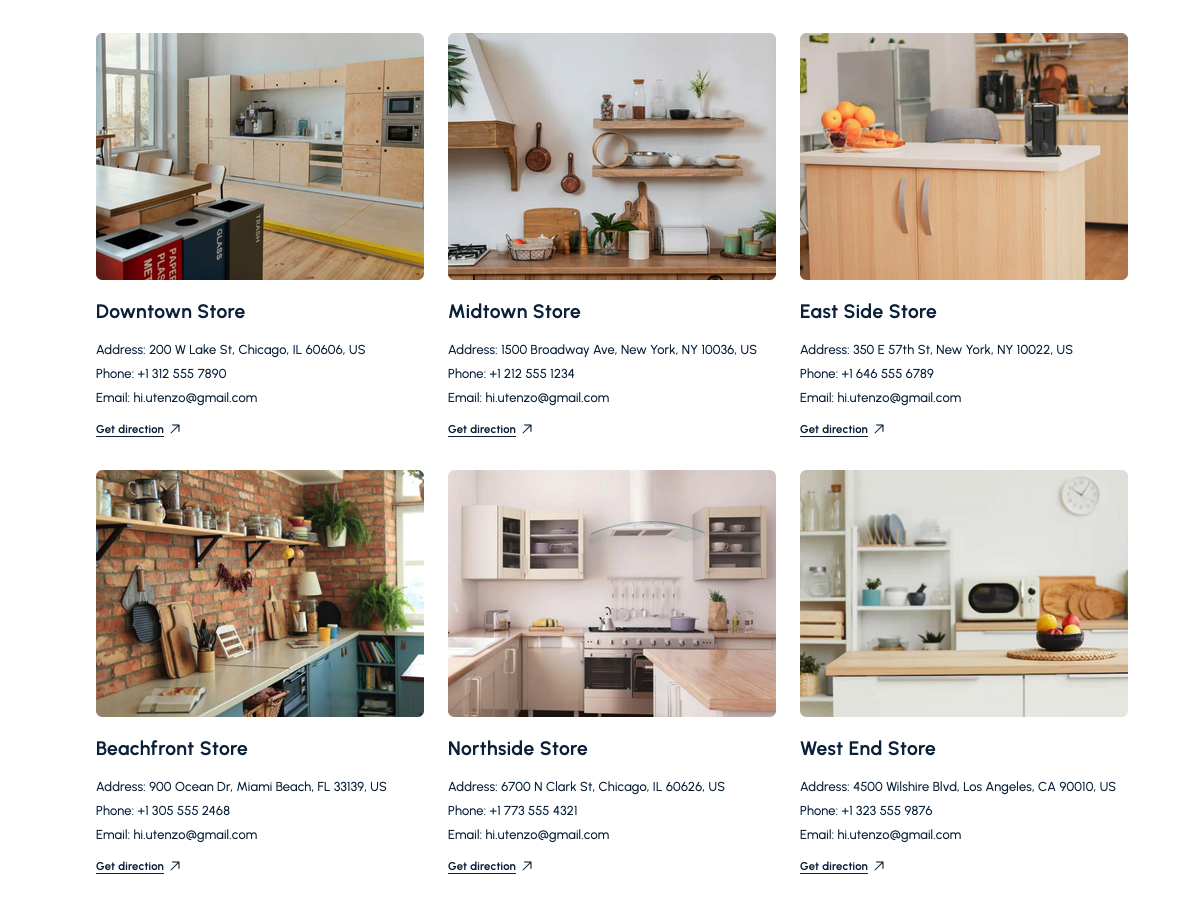
Showcase multiple store locations with images, contact details, and quick map links.
Overview
The Store Locations Section highlights your brick-and-mortar locations in an engaging card layout. Each location card can include a photo, address, phone number, email, and a direct link to Google Maps so customers can easily find and contact you.
How to add
Steps:
- In the theme editor (Customize), click Add section
- Select Store Location
- Save
Section Settings
Content
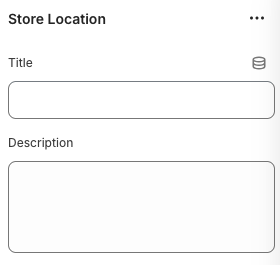
Title
- Main heading displayed above the location grid.
Description
- Optional text that introduces the section or provides a brief overview of your retail network.
Layout
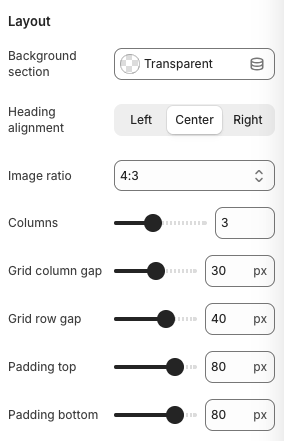
Background Section
- Sets the background style for the entire section (e.g., Transparent, Accent).
Heading Alignment
- Options: Left, Center, Right
- Description: Aligns the title and description above the grid.
Image Ratio
- Controls the aspect ratio of location images (e.g., 4:3, Square, Portrait).
Columns
- Number of location cards displayed per row on desktop.
Grid Column Gap / Grid Row Gap
- Adjust the horizontal and vertical spacing between cards.
Padding Top / Padding Bottom
- Adds breathing room above and below the section.
Block Settings
Store Location Card
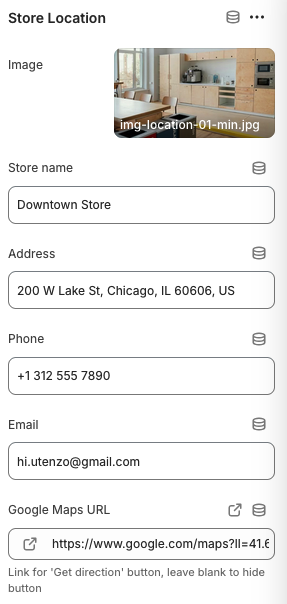
Image
- Upload a photo representing the store or interior.
Store Name
- Title displayed beneath the image (e.g., “Downtown Store”).
Address
- Full address shown under the store name; include city, state, and ZIP for clarity.
Phone
- Optional phone number for customers to call directly.
- Optional contact email for store-specific inquiries.
Google Maps URL
- Link used for the “Get direction” button. Leave blank to hide the button.
Best Practices
- Use consistent, high-quality images to maintain a cohesive grid.
- Include store hours or special notes within the description field if you need more detail.
- Keep contact info up to date, especially phone numbers and email addresses.
- Use a mix of hero store photos and interior shots to set expectations for visitors.
- Pair this section with a
GooglemapSectionfor a map overview of your locations.
Troubleshooting
“Get direction” button missing
- Ensure the Google Maps URL field contains a valid link starting with
https://.
Spacing feels off between cards
- Adjust grid gaps or reduce column count until cards look balanced across screen sizes.
Images cropping unexpectedly
- Change the Image Ratio or upload pictures with matching dimensions for consistent results.