Product Cards
Configure global product card behaviors, buttons, and visual elements used across collections and recommendations.
The Product Cards theme settings control the interactive elements and layout applied to product tiles across your store—collection pages, featured product grids, related items, and more. Adjust these options to match your merchandising strategy and UX expectations.
How to customize
Steps:
- In the theme editor (Customize), open the Theme settings tab.
- Select Product cards.
- Enable or disable the desired options, then choose image ratio and call-to-action style.
- Click Save to apply changes globally.
Settings
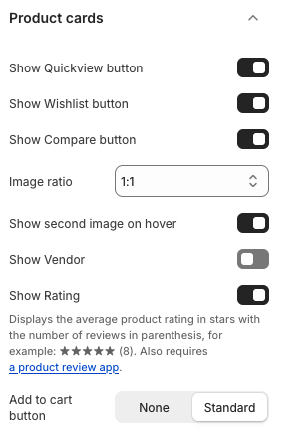
Buttons & Interactions
- Show Quickview button: Displays a quick-view icon on hover so shoppers can preview product details without leaving the page.
- Show Wishlist button: Adds a wishlist heart icon (requires the wishlist app/feature to be enabled).
- Show Compare button: Enables the compare icon for adding products to the comparison list.
Media Options
- Image ratio: Controls the aspect ratio of product images (e.g., 1:1, 4:5). Choose the ratio that best fits your imagery.
- Show second image on hover: When enabled, the card swaps to the next product image when hovered—ideal for showcasing alternate angles.
Metadata
- Show Vendor: Toggles display of the product vendor beneath the title.
- Show Rating: Displays the average star rating and review count (requires a compatible product review app).
Add to Cart Button
- Add to cart button: Choose
Noneto hide the button orStandardto display the theme’s default CTA on cards. Availability of other styles may depend on customizations or apps.
Best Practices
- Limit visible CTAs to avoid clutter; prioritize features that support your store’s goals (e.g., quickview vs. compare).
- Ensure product images share a consistent ratio to prevent layout shifts.
- Enable second image on hover only when secondary imagery meaningfully adds context.
- Pair ratings with a review app to maintain credibility; hide them if you have little to no review data.
Troubleshooting
Buttons not appearing
- Confirm relevant integrations (wishlist, compare, quickview) are installed and active.
- Check that CSS/JS for these features isn’t disabled by other customizations.
Image crops look off
- Adjust the image ratio or upload product photos that match the selected ratio.
Ratings show “No reviews”
- Disable the rating toggle until you collect reviews, or ensure the review app is synced properly.