Colors
Manage global color schemes that can be applied to sections across your storefront.
The Colors theme setting lets you define reusable color schemes. Once created, these schemes appear in section settings, allowing you to quickly switch background, text, and accent colors without manually adjusting each section.
How to customize
Steps:
- In the theme editor (Customize), open the Theme settings tab.
- Select Colors.
- Add a new color scheme or edit an existing one.
- Click Save to apply the changes globally.
Settings
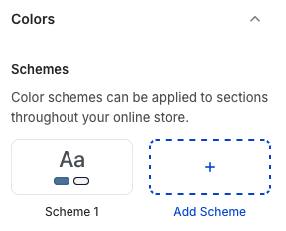
Schemes
- Displays all available color schemes as cards. Each scheme includes swatches for background, text, and accents.
- Click an existing scheme to edit its colors, or use Add Scheme to create a new set.
Scheme Details
When editing or creating a scheme, you can configure:
- Background: Primary background color applied to sections using the scheme.
- Text: Default text color to ensure readability.
- Accent: Used for buttons, links, and highlight elements.
- Secondary Accent: Optional alternate highlight color (availability depends on theme implementation).
Best Practices
- Keep accessibility in mind; ensure sufficient contrast between text and background colors.
- Use descriptive scheme names (e.g., “Light”, “Dark”, “Brand Accent”) so sections are easy to configure.
- Limit the number of schemes to maintain visual consistency across pages.
- Test each scheme on key sections (e.g., hero, product grid) to verify button and link colors meet brand standards.
Troubleshooting
New scheme not appearing in sections
- Refresh the theme editor or re-open the section settings; sometimes the scheme list caches temporarily.
Text hard to read
- Adjust text or background colors to improve contrast, and review the scheme with accessibility tools.
Color updates not saving
- Ensure you clicked Save in the theme editor after editing the scheme; unsaved changes revert when exiting.