Compare Products Section
Display products added to the comparison list in a responsive grid with rich product details.
Overview
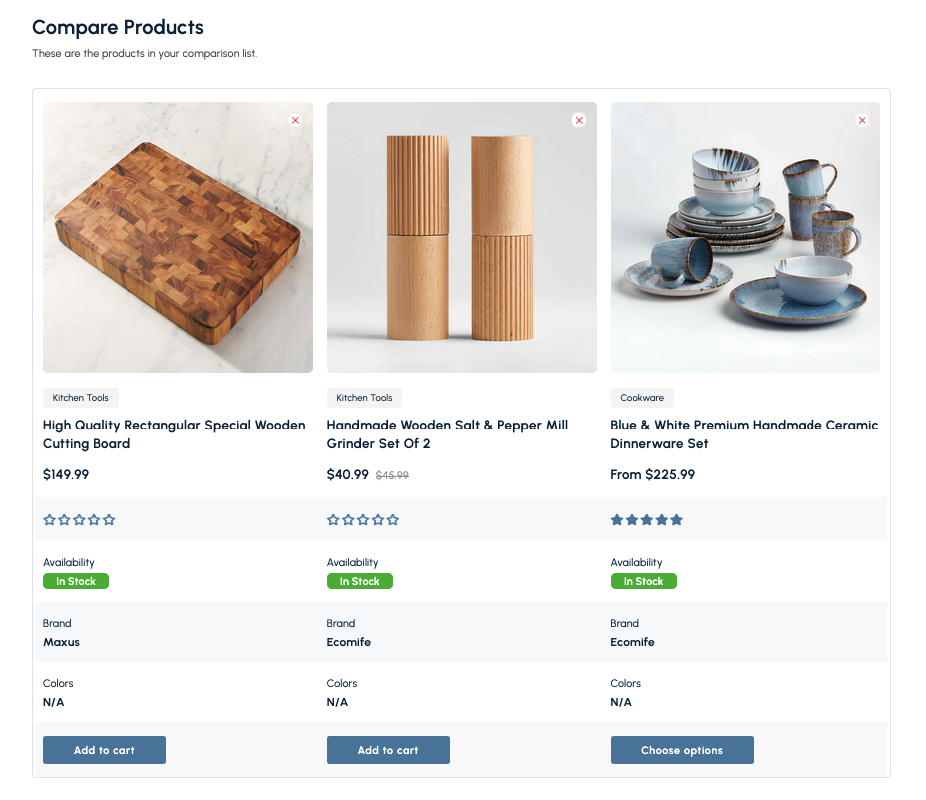
The Compare Products Section automatically shows items shoppers add to their comparison list. Each product card includes imagery, pricing, availability, badges, and call-to-action buttons so customers can evaluate options side by side and proceed to purchase.
How to add
Steps:
- In the theme editor (Customize), click Add section
- Select Compare
- Save
Section Settings
General
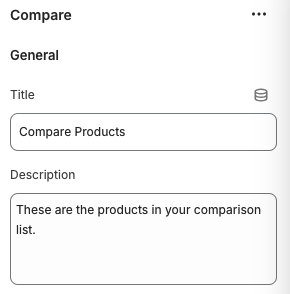
Title
- Heading displayed at the top of the comparison grid.
Description
- Supporting text shown below the title (e.g., explain how to remove products or continue shopping).
Layout
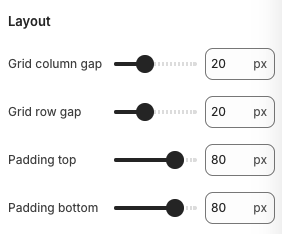
Grid Column Gap / Grid Row Gap
- Adjust spacing between product cards to control density.
Padding Top / Padding Bottom
- Adds vertical spacing above and below the comparison table.
Product Cards
Each product automatically pulls details from the compare list, including:
- Featured image with remove icon
- Product title, vendor, and price (including compare-at price if on sale)
- Review rating (if enabled)
- Availability badge
- Key attributes such as brand, colors, or other metafields configured in the comparison template
- Action buttons (e.g.,
Add to cart,Choose options)
Best Practices
- Encourage customers to add comparable products by featuring compare buttons on collection and product pages.
- Limit the number of attributes displayed per card to keep the layout tidy.
- Adjust grid gaps to prevent cards from feeling cramped on smaller screens.
- Provide a clear CTA (like “Continue Shopping”) elsewhere on the page to help customers keep browsing.
- Test the section with various product counts to ensure the layout remains responsive.
Troubleshooting
Section appears empty
- Ensure the customer has added items to the comparison list; the section populates dynamically.
- Verify your compare app or theme feature is enabled and configured correctly.
Remove icons not working
- Confirm JavaScript for the compare feature is loading without errors; check browser console for clues.
Layout breaks on mobile
- Reduce grid gaps or limit to two columns in the compare app settings if available.