Social Media
Manage the social media profiles linked throughout your storefront.
Use the Social Media settings to connect your storefront with official social channels. The links you enter here appear wherever the theme surfaces social icons—typically in the header, footer, announcement bars, or content sections that support them.
How to customize
Steps:
- In the theme editor (Customize), open the Theme settings tab.
- Select Social media.
- Enter the full URLs for each platform you wish to display.
- Click Save to publish the updates across the theme.
Settings
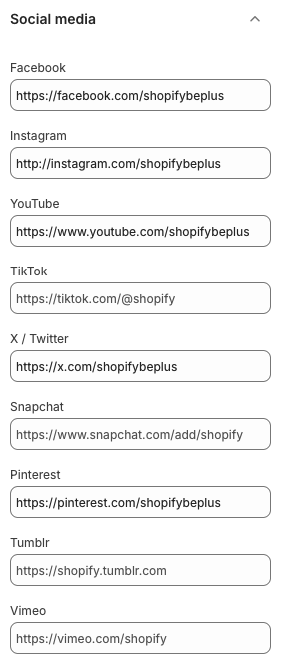
For each supported platform, a text field is provided. Paste the complete URL, including https://, to ensure links open correctly.
- YouTube
- TikTok
- X / Twitter
- Snapchat
- Tumblr
- Vimeo
- Additional platforms may be available depending on theme updates or customizations.
Leaving a field blank hides that platform’s icon anywhere the theme renders social links.
Best Practices
- Use official business profile URLs rather than personal accounts to build trust.
- Keep the platform list concise; only enable channels you actively maintain.
- Confirm that each link opens in a new tab to keep visitors on your store.
- Review icons in the live storefront to ensure they match your brand order (some themes allow reordering).
Troubleshooting
Links not appearing
- Verify the URL field isn’t empty and includes the proper protocol (
https://). - Ensure the section or component you expect to show icons has social media display enabled.
Incorrect icon
- Double-check you pasted the URL into the correct field; some themes infer platform from the domain.
Broken link
- Test each URL in a separate browser tab to confirm the profile is accessible and not restricted.