Integrated Apps
Connect supported third-party apps—such as product reviews and wishlists—to the theme.
The Integrated Apps settings let you specify which external services power key features like product reviews and wishlists. Selecting the appropriate integration ensures the theme loads the correct scripts and displays the right UI components.
How to customize
Steps:
- In the theme editor (Customize), open the Theme settings tab.
- Select Integrated apps.
- Choose the desired apps from the available dropdown menus.
- Click Save to apply the configuration.
Settings
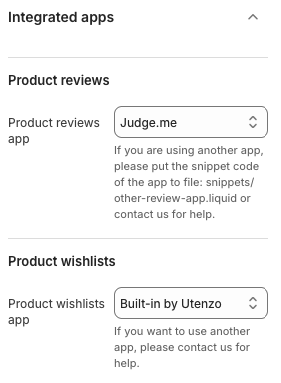
Product Reviews App
- Select the review platform used in your store (e.g., Judge.me).
- If you’re using a provider not listed, follow the accompanying instructions—usually inserting a snippet (e.g.,
snippets/other-review-app.liquid) or contacting support for custom integration.
Product Wishlists App
- Choose the wishlist solution powering your storefront (e.g., Built-in by Utenzo or a third-party provider).
- Some apps require additional setup, such as embedding scripts or enabling app blocks on relevant templates.
Best Practices
- Ensure the selected app is installed and configured in Shopify before assigning it here.
- Review the theme documentation for any extra steps (like snippet placement) when choosing non-default apps.
- After saving, test features on product and collection pages to confirm widgets render correctly.
- Keep integrations updated—app changes might require you to reselect options or adjust snippets.
Troubleshooting
App widgets not appearing
- Confirm the app is installed, active, and has necessary app embeds enabled.
- Check for JavaScript errors in the browser console that might block rendering.
Dropdown missing desired app
- Some integrations require manual snippet setup; choose “Other” (if available) and follow instructions, or contact support for assistance.
Duplicate widgets
- Ensure the theme and the app aren’t both embedding the same widget automatically; disable duplicates in either the theme settings or app admin.