Counter Blocks Section
Showcase key metrics with animated counters arranged in a flexible grid layout.

Overview
The Counter Blocks Section highlights quantitative achievements—such as product counts, customer milestones, or partner totals—using bold numeric counters paired with supporting descriptions. It’s a great way to build credibility and communicate impact at a glance.
How to add
Steps:
- In the theme editor (Customize), click Add section
- Select Counter blocks
- Save
Section Settings
Content
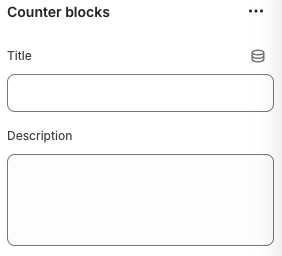
Title
- Optional heading displayed above the counters.
Description
- Supporting text shown beneath the title to provide context.
Layout
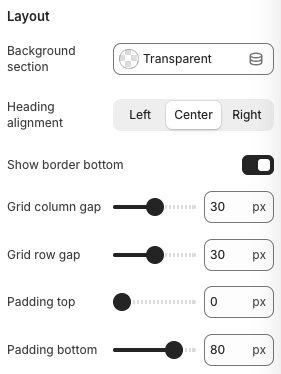
Background Section
- Options: Transparent, Accent, Inverse
- Description: Controls the background style for the section container.
Heading Alignment
- Options: Left, Center, Right
- Description: Aligns the title and description text.
Show Border Bottom
- Toggles a bottom border separating the counters from the rest of the page.
Grid Column Gap / Grid Row Gap
- Range: 0px – 80px
- Description: Adjusts horizontal and vertical spacing between counter cards.
Padding Top / Padding Bottom
- Adds vertical spacing above and below the section.
Block Settings
Counter
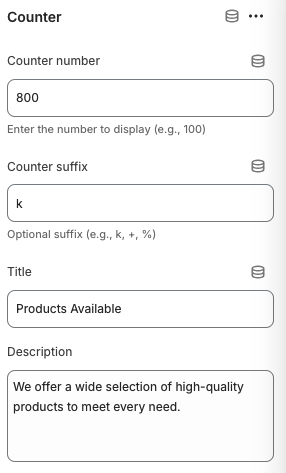
Counter Number
- Numeric value displayed as the main metric.
Counter Suffix
- Optional text appended to the number (e.g.,
k,%,+).
Title
- Short descriptor underneath the number (e.g., “Products Available”).
Description
- Additional details or context about the metric.
Best Practices
- Highlight metrics that convey real value—inventory size, satisfied customers, or years in business.
- Keep number lengths manageable; use suffixes (
k,M) to keep counters easy to read. - Align heading and description with surrounding content for a cohesive visual flow.
- Match counter copy length across blocks to maintain balanced spacing.
- Combine with a contrasting background or border when placed above light sections to ensure separation.
Troubleshooting
Counters misaligned on mobile
- Reduce grid column count (if available) or increase row gap to prevent overlapping content.
Suffix not showing
- Ensure the suffix field contains text without extra spaces; it appears immediately after the number.
Numbers not updating
- Confirm the counter number field contains a valid numeric value (digits only) before adding suffixes.