Image with Text Section
This versatile section allows you to combine images and text in a flexible column layout.
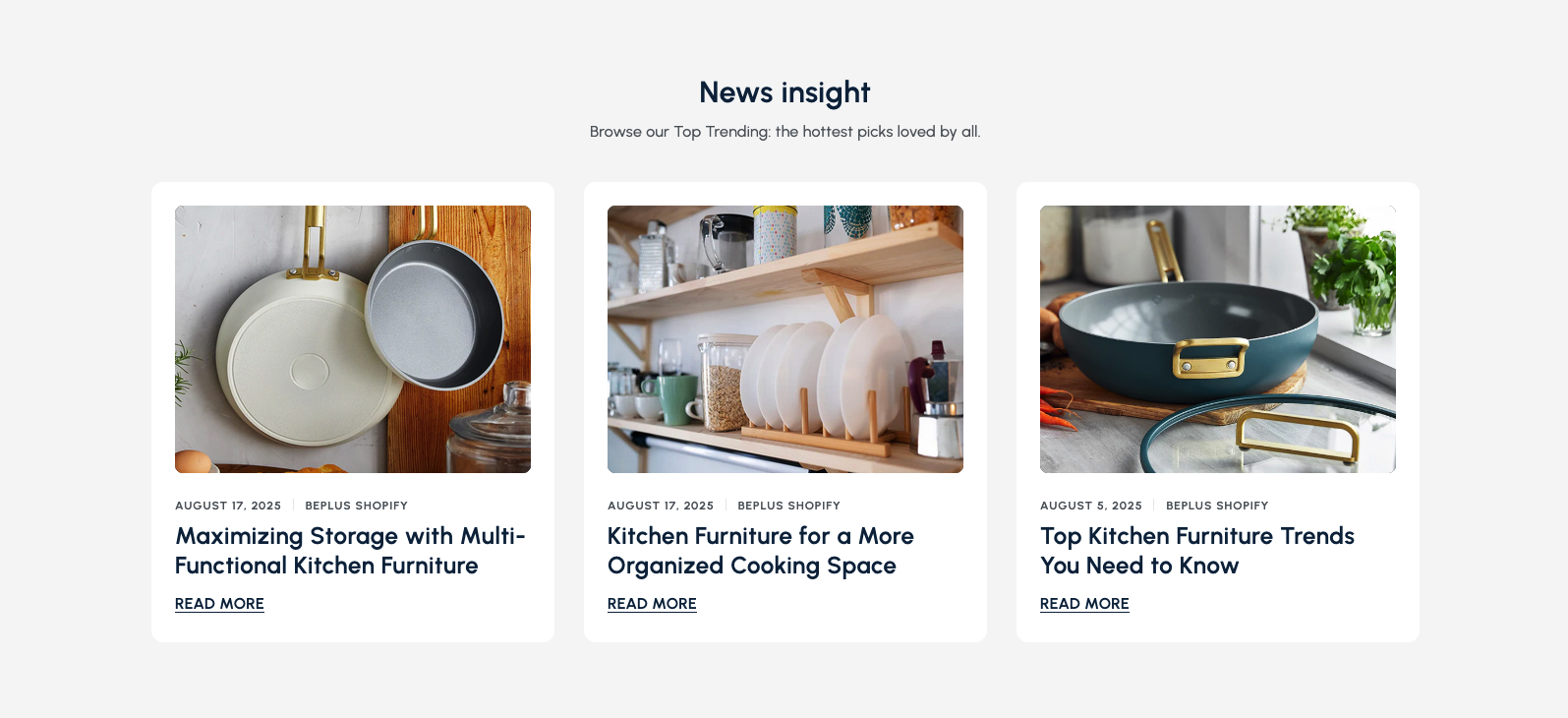
Overview
The Image with Text Section is a highly versatile component designed to present content in a visually engaging way by pairing images with descriptive text. It's ideal for showcasing product features, highlighting promotions, or telling a brand story through a combination of visuals and compelling copy.
This section allows you to create one or more columns, each containing an image, a heading, a description, and an optional call-to-action button. You can customize the layout, colors, and content for each column independently, making it adaptable for various content needs.
How to add
Steps:
- In the theme editor (Customize), click Add section
- Select Image with text
- Save
Section Settings
General Settings
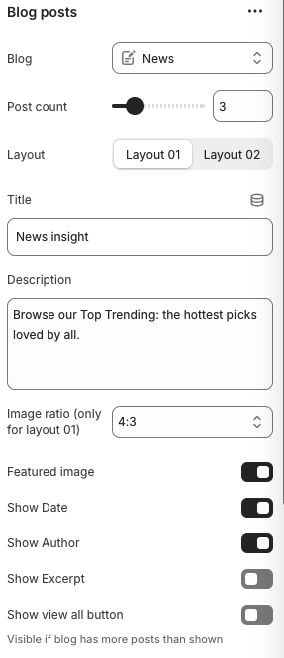
Background Section
- Background styling for the entire section
Content Alignment
- Options: Left, Center, Right
- Description: Controls the alignment of text content within columns
Grid Column Gap
- Horizontal spacing between columns
Grid Row Gap
- Vertical spacing between rows
Padding Top
- Top padding for the section
Padding Bottom
- Bottom padding for the section
Block Settings
Column Settings
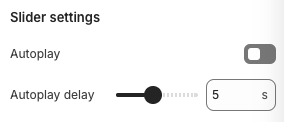
Width
- Options: Half, Full
- Description: Determines the width of the individual column within the section
Image
- Format: JPG, PNG, WebP
- Recommended Size: 960x600px for half width, 1920x600px for full width
- Description: The visual element for the column
Placement
- Options: Image first, Image second
- Description: Controls the order of image and text content within the column
Text Color
- Sets the color of the heading, description, and button label text
Background Color
- Sets the background color of the entire column block
Heading
- The main title or headline for the column's content
Description
- Detailed text content for the column with formatting support
Label
- The text displayed on the call-to-action button
Link
- The destination URL when the call-to-action button is clicked
Best Practices
Content Strategy
- Use high-quality, relevant images that complement your text
- Keep headings concise and compelling
- Write clear, benefit-focused descriptions
- Include strong call-to-action buttons
Visual Design
- Choose background colors that provide good contrast with text
- Ensure images are properly sized and optimized
- Use consistent styling across columns
- Test readability on different screen sizes
Layout Optimization
- Use appropriate column widths for your content
- Consider image placement for optimal visual flow
- Maintain consistent spacing between columns
- Test responsive behavior on mobile devices
User Experience
- Make call-to-action buttons prominent and clear
- Ensure links point to relevant destinations
- Optimize images for fast loading
- Test button functionality across devices
Troubleshooting
Common Issues
Images not displaying
- Check image upload status and file format
- Verify image URLs are correct
- Ensure images are properly sized
- Test image loading on different devices
Text not readable
- Adjust text color for better contrast with background
- Check text color settings for each column
- Test readability on different screen sizes
- Ensure proper font sizing
Layout issues
- Check column width settings
- Verify grid gap and padding values
- Test responsive breakpoints
- Ensure proper CSS loading
Button not working
- Verify link URLs are correctly entered
- Check button styling is not interfering with functionality
- Test button clicks on different devices
- Ensure no JavaScript conflicts
Mobile responsiveness problems
- Check mobile layout settings
- Verify mobile padding and gap values
- Test touch targets on mobile devices
- Ensure text is readable on small screens
Performance issues
- Optimize images for web delivery
- Reduce image file sizes
- Consider lazy loading for images
- Test page load times