Logo & Favicon
Configure the primary logo, secondary logo, and favicon used throughout your storefront.
Use the Logo & Favicon settings to control the branding assets that appear across your theme. Upload high-quality versions of your logo for both light and dark backgrounds, adjust the displayed width, and set the favicon that appears in browser tabs.
How to customize
Steps:
- In the theme editor (Customize), open the Theme settings tab.
- Select Logo & Favicon.
- Update the assets and width as needed.
- Click Save to publish your changes.
Settings
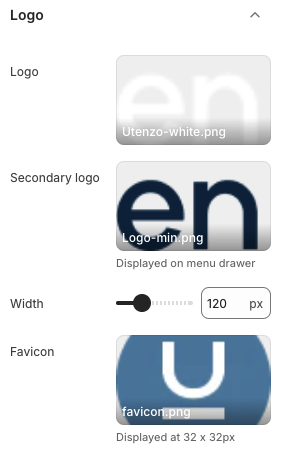
Logo
- Upload the primary logo used in the header and most sections.
- Recommended format: PNG or SVG with transparent background.
Secondary Logo
- Alternate logo used in contexts like the menu drawer or dark backgrounds.
- Use a contrasting version to maintain readability.
Width
- Slider that adjusts the rendered width of the header logo (in pixels).
- Keep within the visual balance of your navigation; 120px is a common starting point.
Favicon
- Icon displayed in browser tabs and bookmarks (typically 32 × 32px).
- Upload a square PNG, ICO, or SVG for best compatibility.
Best Practices
- Provide both light and dark logo variants so branding remains visible on all backgrounds.
- Export logos at 2× the intended display width for crisp rendering on high-DPI screens.
- Keep the favicon simple and recognizable—even at small sizes.
- Test logo sizing on desktop and mobile to ensure it doesn’t overpower the navigation.
Troubleshooting
Logo appears blurry
- Upload a higher-resolution image (at least double the displayed width) or use an SVG file.
Secondary logo not showing
- Confirm the secondary logo field isn’t empty and that the design element (e.g., drawer) supports it.
Favicon not updating
- Clear browser cache or perform a hard refresh; favicons can take time to update.
- Ensure the favicon file meets size and format requirements.