Additional Pages
Assign dedicated pages for wishlist and product comparison features throughout the theme.
The Additional Pages settings connect theme features—like wishlist and product comparison—to specific storefront pages. Selecting the correct pages ensures navigation links and buttons send shoppers to the right experience.
How to customize
Steps:
- In the theme editor (Customize), open the Theme settings tab.
- Select Additional pages.
- Pick the appropriate pages from the dropdown menus.
- Click Save to apply the configuration.
Settings
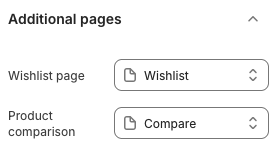
Wishlist Page
- Choose the page that hosts your wishlist content (created via a template or app).
- This selection is used by wishlist icons or header links across the theme.
Product Comparison
- Select the page that displays product comparison results.
- Ensure the page uses the correct template or app block to render comparison data.
If no page is selected, related links may not function or will default to the home page.
Best Practices
- Create dedicated pages using the theme’s “Wishlist” and “Compare” templates before assigning them here.
- Keep the page handles consistent (
/pages/wishlist,/pages/compare) to ease app integrations. - Test links in the header, drawer, or product cards after saving to confirm they route correctly.
- Update these settings whenever you rename or recreate the associated pages.
Troubleshooting
Dropdown missing a page
- Verify the page exists in Shopify admin and uses the expected template. Save the page again to refresh the list.
Link opens the wrong content
- Confirm the assigned page is using the correct template and isn’t redirecting elsewhere.
Apps not syncing
- Some wishlist/compare apps require their own configuration. Ensure both the app and theme settings point to the same page.