Collection List Section
This section displays product collections in a grid layout with customizable styling and layout options.
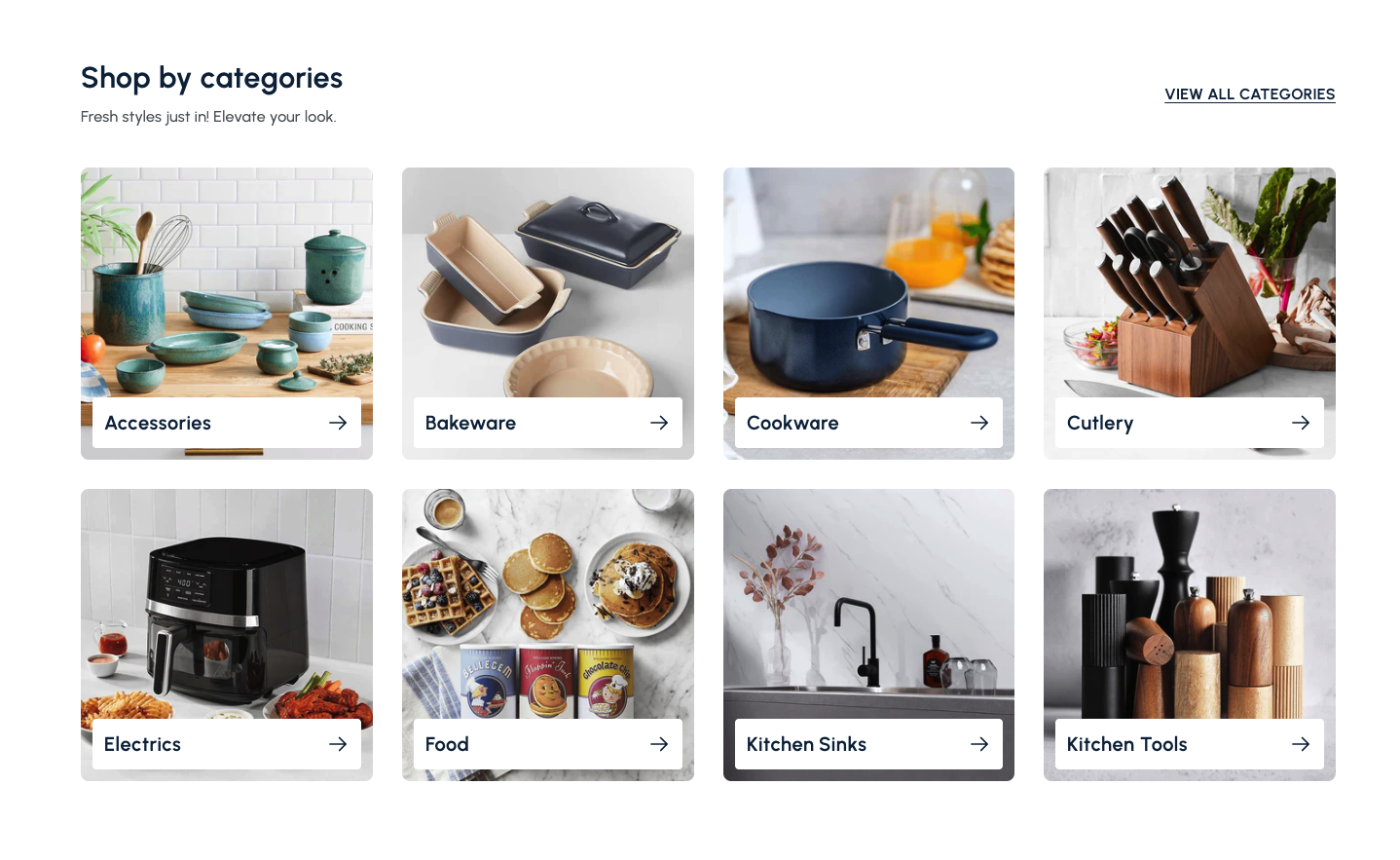
Overview
The Collection List Section is a versatile component that displays your product collections in an organized grid layout. Perfect for showcasing different product categories, this section allows customers to easily browse and discover your product offerings.
The Collection List Section provides a clean, organized way to display multiple product collections on your homepage. Each collection is represented by an image, title, and navigation arrow, making it easy for customers to explore different product categories.
How to add
Steps:
- In the theme editor (Customize), click Add section
- Select Collection list
- Save
Section Settings
Content Settings
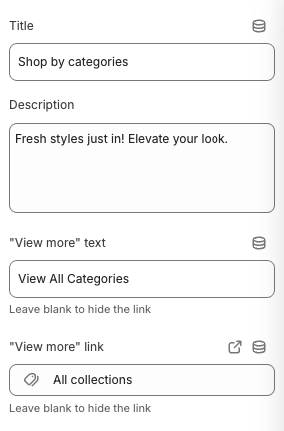
Title
- Main heading displayed above the collection grid
Description
- Subtitle or descriptive text below the main title
"View more" Text
- Text displayed on the "view more" link
"View more" Link
- Destination URL for the "view more" link
Layout Settings
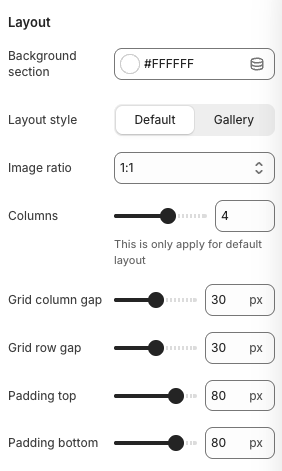
Background
- Background color for the entire section
Layout Style
- Options:
- Default
- Gallery
- Description: Controls the visual style of the collection grid
Image Ratio
- Options: 1:1, 3:4, 4:3, 16:9
- Description: Aspect ratio for collection images
Columns (Desktop)
- Number of columns in the grid for desktop view
Grid Column Gap
- Horizontal spacing between columns
Grid Row Gap
- Vertical spacing between rows
Padding Top
- Top padding for the section
Padding Bottom
- Bottom padding for the section
Best Practices
Content Strategy
- Use clear, descriptive collection titles
- Choose high-quality images that represent each collection
- Keep descriptions concise and engaging
- Use consistent naming conventions across collections
Layout Optimization
- Use 4 columns for desktop to maximize space utilization
- Consider 2 columns for mobile to maintain readability
- Maintain consistent spacing between grid items
- Test different image ratios for optimal visual appeal
Visual Design
- Ensure collection images have good contrast
- Use consistent image styles across all collections
- Consider the overall color scheme of your theme
- Test the layout on different screen sizes
Performance
- Optimize collection images for web delivery
- Use appropriate image formats (WebP when possible)
- Consider lazy loading for better page performance
- Keep the number of collections reasonable (8-12 recommended)
Troubleshooting
Common Issues
Collections not displaying
- Verify collections exist in your Shopify admin
- Check collection visibility settings
- Ensure collections have assigned images
- Verify collection status is active
Layout issues
- Check column settings for desktop and mobile
- Verify grid gap settings are appropriate
- Test different image ratios
- Ensure responsive breakpoints are working
Image display problems
- Check image dimensions and aspect ratios
- Verify image format is supported
- Ensure images are uploaded to Shopify
- Test image loading on different devices
Mobile responsiveness issues
- Check mobile column settings
- Verify mobile padding and gap settings
- Test on actual mobile devices
- Ensure touch targets are appropriately sized
Performance problems
- Optimize collection images
- Reduce number of collections if needed
- Check image file sizes
- Consider lazy loading implementation