Countdown Banner Section
Promote time-sensitive offers with a hero banner featuring a live countdown timer and call-to-action button.

Overview
The Countdown Banner Section helps you highlight limited-time promotions or product drops with a bold background image and real-time countdown. It's ideal for flash sales, seasonal campaigns, or launch announcements where urgency drives conversions.
How to add
Steps:
- In the theme editor (Customize), click Add section
- Select Countdown banner
- Save
Section Settings
Banner
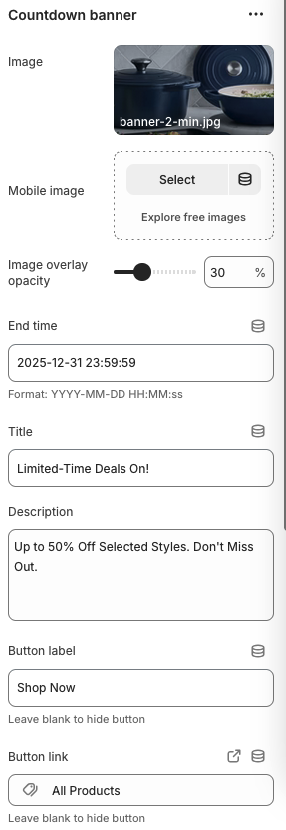
Image
- Primary background image displayed on desktop devices. Recommended size: 1920 x 800px (JPG, PNG, WebP).
Mobile Image
- Optional image optimized for smaller screens; use when the desktop crop does not translate well to mobile.
Image Overlay Opacity
- Range: 0% – 100%
- Description: Adds a color overlay to improve text contrast against the background image.
End Time
- Format:
YYYY-MM-DD HH:MM:SS - Description: Sets the target date/time (in store timezone) for the countdown timer. Once reached, the timer hits zero.
Title
- Main headline displayed above the timer.
Description
- Supporting copy to explain the promotion or offer details.
Button Label
- Text on the call-to-action button; leave blank to hide the button.
Button Link
- Destination URL for the button (product page, collection, or custom link).
Layout
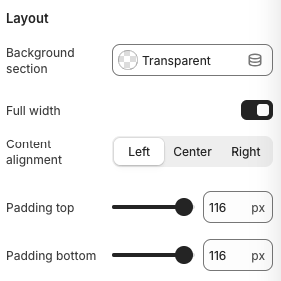
Background Section
- Options: Transparent, Accent, Inverse
- Description: Controls the background styling around the banner container.
Full Width
- Toggles whether the banner spans edge-to-edge across the viewport.
Content Alignment
- Options: Left, Center, Right
- Description: Aligns the text and countdown timer within the banner.
Padding Top / Padding Bottom
- Range: 0px – 160px
- Description: Adjusts vertical spacing above and below the banner content.
Best Practices
- Choose imagery with enough negative space so the countdown and text remain legible.
- Use contrasting overlay and text colors to maintain accessibility.
- Set the end time slightly later than the actual deadline to accommodate timezone differences.
- Keep copy concise—focus on urgency and value.
- Pair the countdown with a clear call-to-action that directs shoppers to the promotion.
Troubleshooting
Timer stuck at 00:00
- Verify the End Time format and ensure the date is in the future relative to the store timezone.
Text hard to read
- Increase the Overlay Opacity or swap to an image with less visual noise.
Button not showing
- Ensure the Button Label field contains text; the button hides automatically when left blank.
Mobile layout looks cramped
- Upload a dedicated Mobile Image with tighter crop and adjust Content Alignment to suit smaller screens.