Slideshow Section
This section supports both image and video slides with advanced customization options.
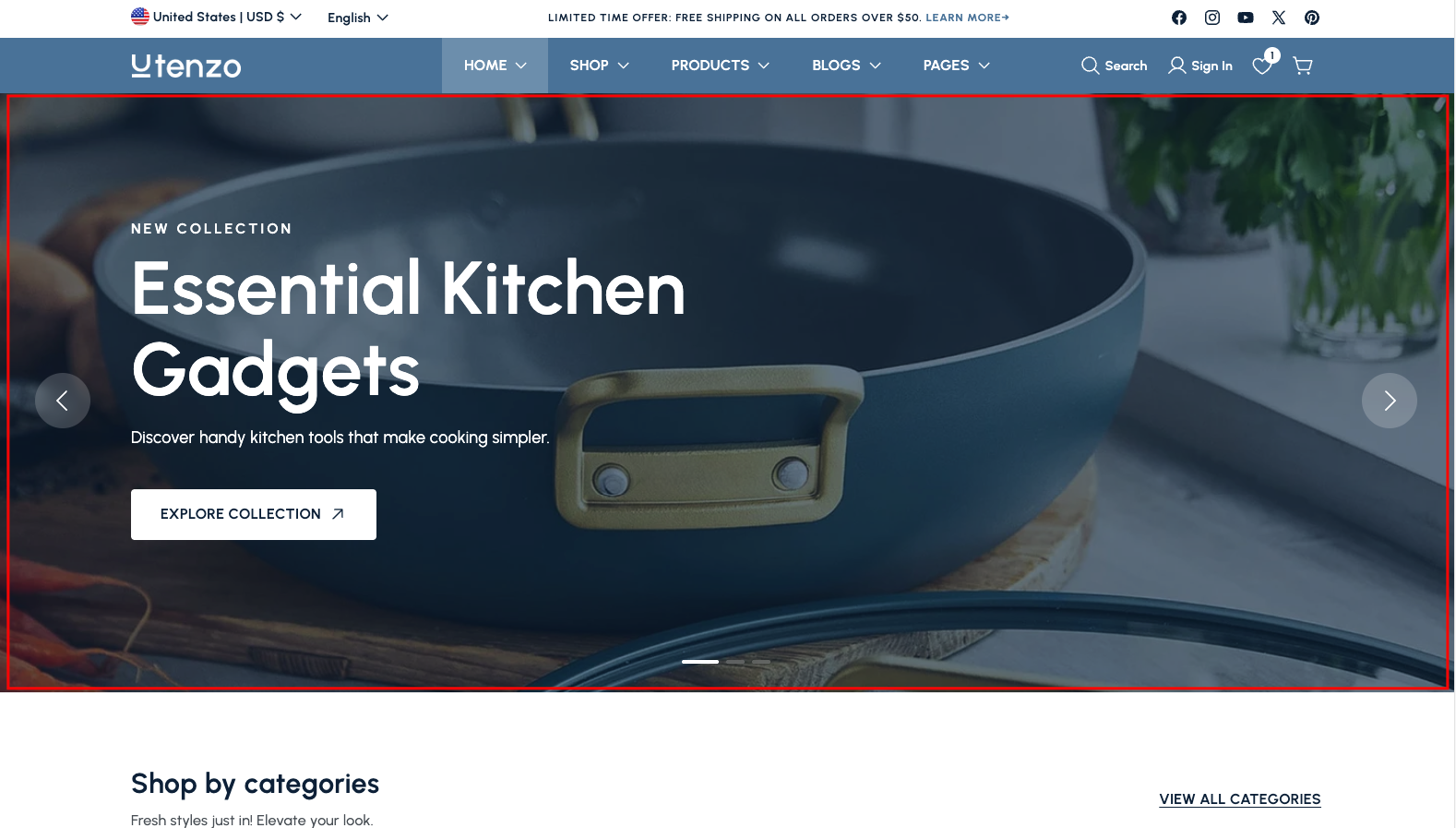
Overview
The Slideshow Section is a powerful component that allows you to create engaging, dynamic hero sections for your homepage. This section supports multiple image slides and video slides with customizable content overlays, animations, and navigation controls.
The Slideshow Section provides a full-width, responsive slideshow that can showcase your products, collections, or promotional content.
Slide Types
The Slideshow Section supports two main types of slides:
- Image Slides - Static background images with content overlays
- Video Slides - Dynamic video backgrounds with content overlays
How to add
Steps:
- In the theme editor (Customize), click Add section
- Select Slideshow
- Save
Section Settings
General Settings
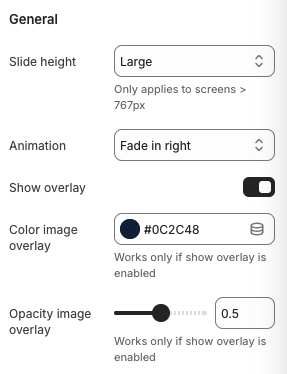
Slide Height
- Options: Small, Medium, Large, Fullscreen
- Note: Only applies to screens > 767px
- Description: Controls the overall height of the slideshow section
Animation
- Options: Fade in, Fade in right, Fade in left, Fade in up
- Description: Controls the transition animation between slides
Show Overlay
- Enables a color overlay on top of the background image/video
Color Image Overlay
- Note: Works only if "Show overlay" is enabled
- Description: Sets the color of the overlay applied to background images and videos
Opacity Image Overlay
- Note: Works only if "Show overlay" is enabled
- Description: Controls the transparency of the overlay
Slider Settings
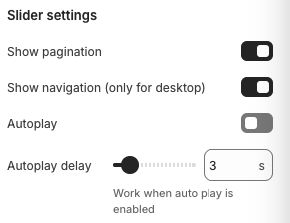
Show Pagination
- Displays navigation dots at the bottom of the slideshow
Show Navigation (Desktop Only)
- Shows previous/next arrow buttons (desktop only)
Autoplay
- Automatically advances to the next slide
Autoplay Delay
- Note: Works when autoplay is enabled
- Description: Controls the time between automatic slide transitions
Block Settings
Image Slide Settings
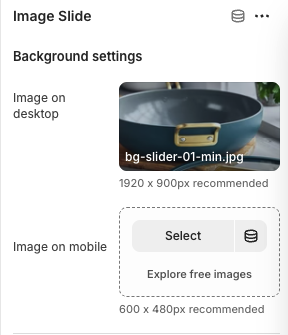
Image on Desktop
- Recommended Size: 1920 x 900px
- Format: JPG, PNG, WebP
- Description: High-resolution image displayed on desktop devices
Image on Mobile
- Recommended Size: 600 x 480px
- Format: JPG, PNG, WebP
- Description: Optimized image for mobile devices
Video Slide Settings
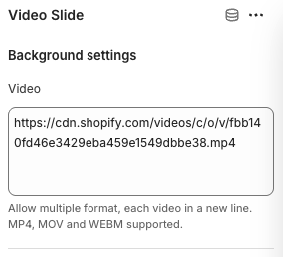
Video URL
- Supported Formats: MP4, MOV, WEBM
- Multiple Videos: Support for multiple video URLs (one per line)
- Example:
https://cdn.shopify.com/videos/c/o/v/fbb140fd46e3429eba459e1549dbbe38.mp4 - Description: Direct URL to video file or multiple video URLs for fallback support
Video Configuration Notes
- Format Support: MP4, MOV, and WEBM formats are supported
- Multiple Videos: You can add multiple video URLs, each on a new line, for better browser compatibility
- Fallback: If the first video format isn't supported, the system will automatically try the next video in the list
- Performance: Videos are automatically optimized for web delivery
Content Settings
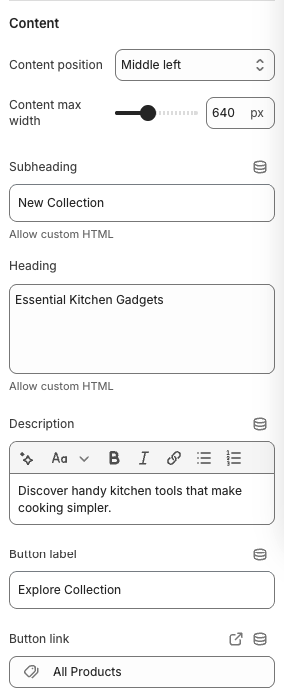
Content Position
- Options:
- Top left, Top center, Top right
- Middle left, Middle center, Middle right
- Bottom left, Bottom center, Bottom right
- Description: Controls the alignment of text content on the slide
Content Max Width
- Limits the width of the text content block
Subheading
- Small text displayed above the main heading
Heading
- Main title text for the slide
Description
- Detailed description text below the heading
Button Label
- Text displayed on the call-to-action button
Button Link
- Destination URL for the call-to-action button
Best Practices
Image Optimization
- Use high-quality images with the recommended dimensions
- Optimize images for web (compress without losing quality)
- Consider using WebP format for better performance
- Ensure mobile images are properly cropped and centered
Video Optimization
- Use compressed video files to reduce loading times
- Recommended video length: 10-30 seconds for slideshow backgrounds
- Use MP4 format as primary, with WebM as fallback for better browser support
- Keep video file sizes under 10MB for optimal performance
- Consider using multiple video formats for better browser compatibility
- Ensure videos have good contrast for text overlay readability
Content Strategy
- Keep headings concise and impactful
- Use descriptive but brief descriptions
- Include clear call-to-action buttons
- Test readability with different overlay opacities
- Ensure text contrast works well with both images and videos
Performance
- Limit the number of slides to 3-5 for optimal performance
- Use appropriate autoplay delays (3-5 seconds recommended)
- Consider disabling autoplay on mobile devices
- Optimize video files for web delivery
Troubleshooting
Common Issues
Images not displaying properly
- Check image dimensions match recommendations
- Verify image format is supported
- Ensure images are uploaded to your theme assets
Videos not playing
- Verify video format is supported (MP4, MOV, WEBM)
- Check video file size (keep under 10MB)
- Ensure video URL is accessible and not blocked
- Test with multiple video formats for browser compatibility
Text overlay not visible
- Adjust overlay opacity settings
- Check text color contrast
- Verify content position settings
- Test with different background images/videos
Autoplay not working
- Ensure autoplay is enabled in slider settings
- Check autoplay delay is set above 0
- Verify no JavaScript conflicts
- Some browsers block autoplay on mobile devices
Mobile responsiveness issues
- Upload separate mobile images
- Test content positioning on different screen sizes
- Adjust content max width for mobile
- Verify video playback on mobile devices
Performance issues
- Reduce number of slides
- Optimize image and video file sizes
- Consider disabling autoplay on mobile
- Use appropriate image formats (WebP when possible)