Image Banner Section
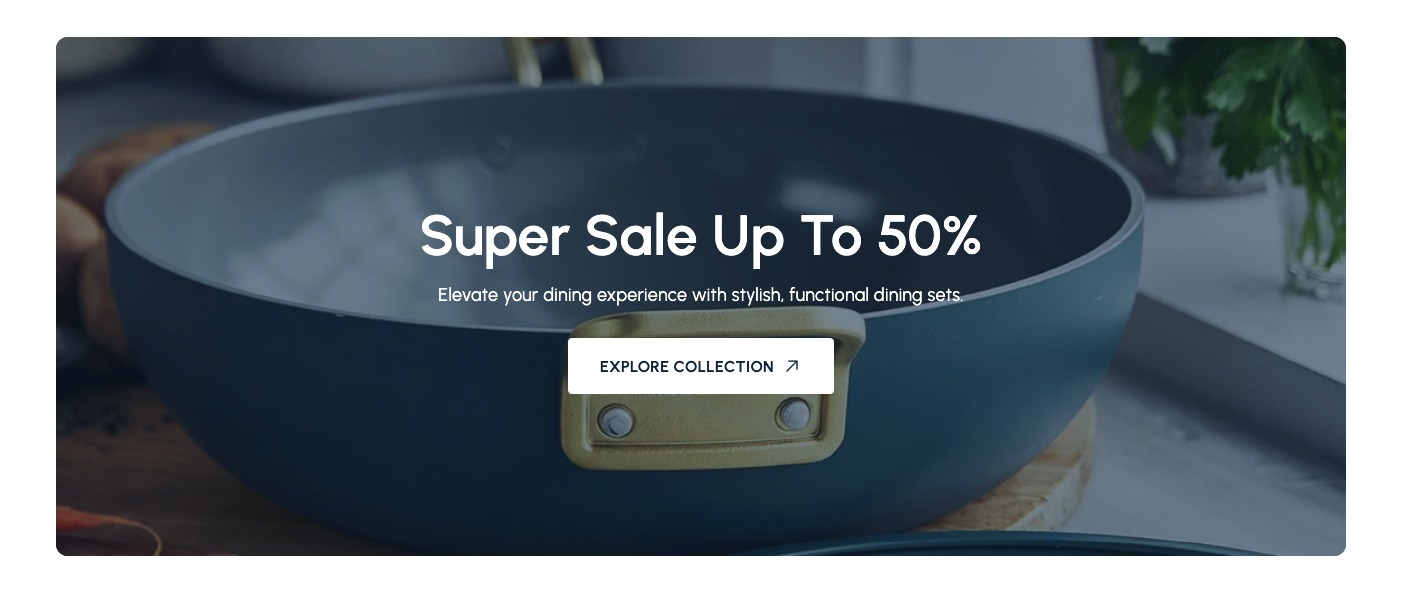
Showcase a single promotional image with text overlay and a call-to-action button.
Overview
The Image Banner Section creates a focused hero panel with a single background image, a text overlay, and an optional call-to-action button. Use it to highlight time-sensitive promotions or evergreen value statements at the top of landing pages.
How to add
Steps:
- In the theme editor (Customize), click Add section
- Select Image banner
- Save
Section Settings
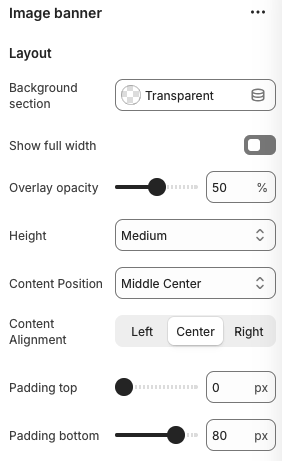
Background Section
- Options: Transparent, Accent, Inverse
- Description: Sets the color treatment behind the banner container.
Show Full Width
- Toggles whether the banner spans the full viewport width.
Overlay Opacity
- Range: 0% – 100%
- Description: Controls the darkness of the color overlay applied to the background image.
Height
- Options: Small, Medium, Large
- Description: Adjusts the vertical height of the banner on desktop screens.
Content Position
- Options: Top left, Top center, Top right, Middle left, Middle center, Middle right, Bottom left, Bottom center, Bottom right
- Description: Sets the vertical and horizontal alignment of the text overlay.
Content Alignment
- Options: Left, Center, Right
- Description: Controls the text alignment inside the content block.
Padding Top / Padding Bottom
- Range: 0px – 160px
- Description: Adds extra space above or below the banner content.
Block Settings
Banner
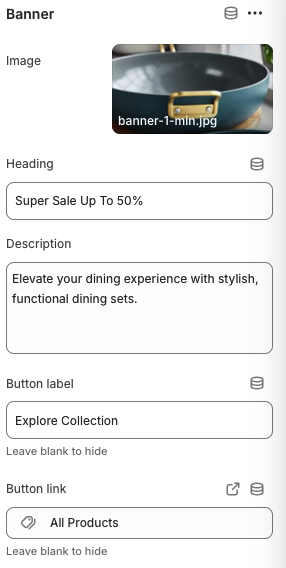
Image
- Recommended Size: 1920 x 900px
- Format: JPG, PNG, WebP
- Description: Background image displayed behind the text overlay.
Heading
- Primary title text displayed prominently in the center of the banner.
Description
- Supporting copy that provides additional context or promotional details.
Button Label
- Text displayed on the call-to-action button; leave blank to hide the button.
Button Link
- Destination URL or link to a product, collection, or page.
Best Practices
- Use high-resolution images with clear focal points; avoid busy backgrounds behind text.
- Pair overlay opacity with contrasting text colors to maintain readability.
- Keep headings concise (4–6 words) and descriptions short to avoid wrapping on mobile.
- Set the button label to an action-oriented verb (e.g., "Shop Now", "Explore Collection").
- Test the layout on desktop and mobile to ensure the content position feels balanced.
Troubleshooting
Text hard to read
- Increase the overlay opacity or choose an image with more negative space.
- Adjust content alignment to avoid placing text over bright highlights.
Button not visible
- Confirm the Button Label field has text and that the theme style allows buttons on this section.
Image appears cropped awkwardly
- Upload an image with the recommended dimensions and ensure the subject is centered.
- Experiment with different height options to reveal more of the image.
Section spacing feels tight
- Increase top or bottom padding values to create breathing room around the banner.