Cart
Control the behavior and content of the cart experience across your storefront.
The Cart theme settings determine whether shoppers use a drawer or a dedicated cart page, along with optional details displayed in the cart. Adjust these options to match your checkout flow and merchandising needs.
How to customize
Steps:
- In the theme editor (Customize), open the Theme settings tab.
- Select Cart.
- Configure the cart type and toggle additional information displays.
- Click Save to apply the changes.
Settings
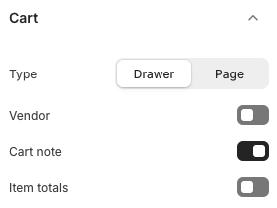
Type
- Drawer: Opens a slide-out panel when items are added to the cart, keeping shoppers on the current page.
- Page: Sends shoppers to the full cart page immediately after interacting with the cart.
Vendor
- Toggle to show or hide the product vendor beneath line items in the cart.
Cart Note
- Enables a text area for customers to add special instructions or notes before checkout.
Item Totals
- Displays line-item subtotals directly within the cart. Turn on if you want shoppers to see per-item totals in addition to the overall cart total.
Best Practices
- Use the Drawer option for faster, seamless shopping experiences; switch to Page if you rely on upsell content or need more space for custom messaging.
- Enable Cart Note when you accept gift messages or customization requests.
- Display Item Totals when selling in bulk or when customers need clarity on individual item costs.
- If you show Vendor, ensure vendor names are meaningful to shoppers (e.g., brand names).
Troubleshooting
Cart drawer not opening
- Check for JavaScript errors in the console; scripts from other apps may interfere with the drawer.
- Ensure the cart type is set to Drawer and that any cart-related app embeds are compatible.
Notes not saving
- Verify that the cart note field is enabled and that your checkout settings allow order notes.
Vendor names missing
- Confirm the products in Shopify have vendor values set; the toggle only displays existing vendor data.