Product Collection Column Section
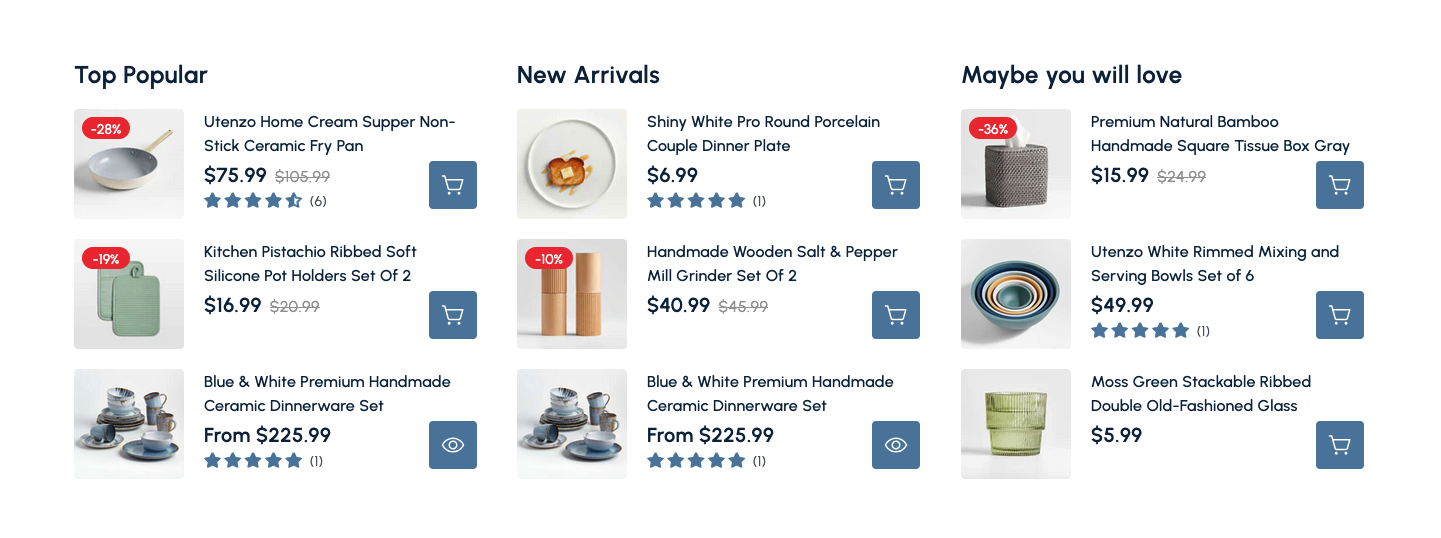
Display multiple curated product groups side by side with headings, pricing details, and quick action buttons.
Overview
The Product Collection Column Section lets you showcase several curated product lists inside neatly aligned columns. Each column can highlight a small set of products—perfect for surfacing featured picks, seasonal arrivals, or personalized recommendations while keeping the layout compact and easy to scan.
How to add
Steps:
- In the theme editor (Customize), click Add section
- Select Product collection column
- Save
Section Settings
General
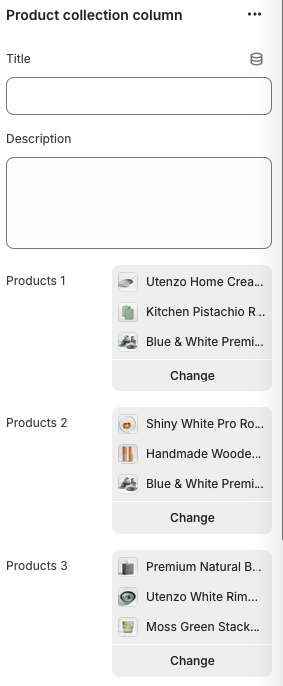
Title
- Main heading displayed above the product columns.
Description
- Optional short text that introduces the featured product groups.
Products 1 / Products 2 / Products 3
- Select up to three product lists; each list supplies items to the columns. Lists can repeat if you want the same products in multiple columns.
Layout
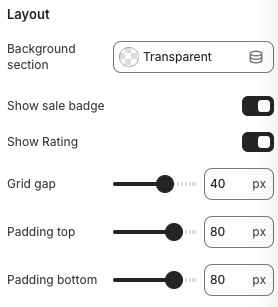
Background Section
- Options: Transparent, Accent, Inverse
- Description: Sets the background style of the entire section container.
Show Sale Badge
- Toggles the visibility of percentage-off badges for discounted products.
Show Rating
- Displays product review stars beneath the product price when enabled.
Grid Gap
- Range: 0px – 80px
- Description: Controls the horizontal spacing between product columns.
Padding Top / Padding Bottom
- Adds vertical spacing above and below the section to create breathing room within the page.
Block Settings
Column
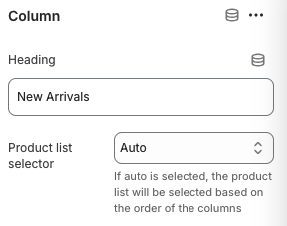
Heading
- Column-specific title such as “Top Popular”, “New Arrivals”, or “Maybe you will love”.
Product List Selector
- Options: Auto, Products 1, Products 2, Products 3
- Description: Determines which product list populates this column. When set to
Auto, the column pulls from the available lists in order (first column → Products 1, second → Products 2, third → Products 3).
Best Practices
- Keep column headings short and descriptive so shoppers immediately understand the theme.
- Reuse strong performers by mixing best-sellers with new items to balance relevance and discovery.
- Enable sale badges and ratings when you have rich merchandising data to boost credibility.
- Limit each product list to three or four items to maintain a tidy visual hierarchy.
- Adjust grid gap and padding to ensure the layout breathes on both desktop and mobile breakpoints.
Troubleshooting
A column shows duplicate products
- Switch the Product List Selector from
Autoto a specific list to control which products appear. - Review the underlying product lists in the Shopify admin to remove duplicate items.
Sale badges or ratings are missing
- Confirm the toggle is enabled in the Layout settings.
- Verify the products actually have compare-at prices (for sale badges) or published reviews (for ratings).
Spacing feels too tight or too wide
- Tweak the Grid Gap slider for column spacing and adjust top/bottom padding to fit within the page layout.
Products fail to load
- Ensure the connected product lists contain active, available products.
- Verify your theme app extensions are synced after creating new product lists.