Our Teams Section
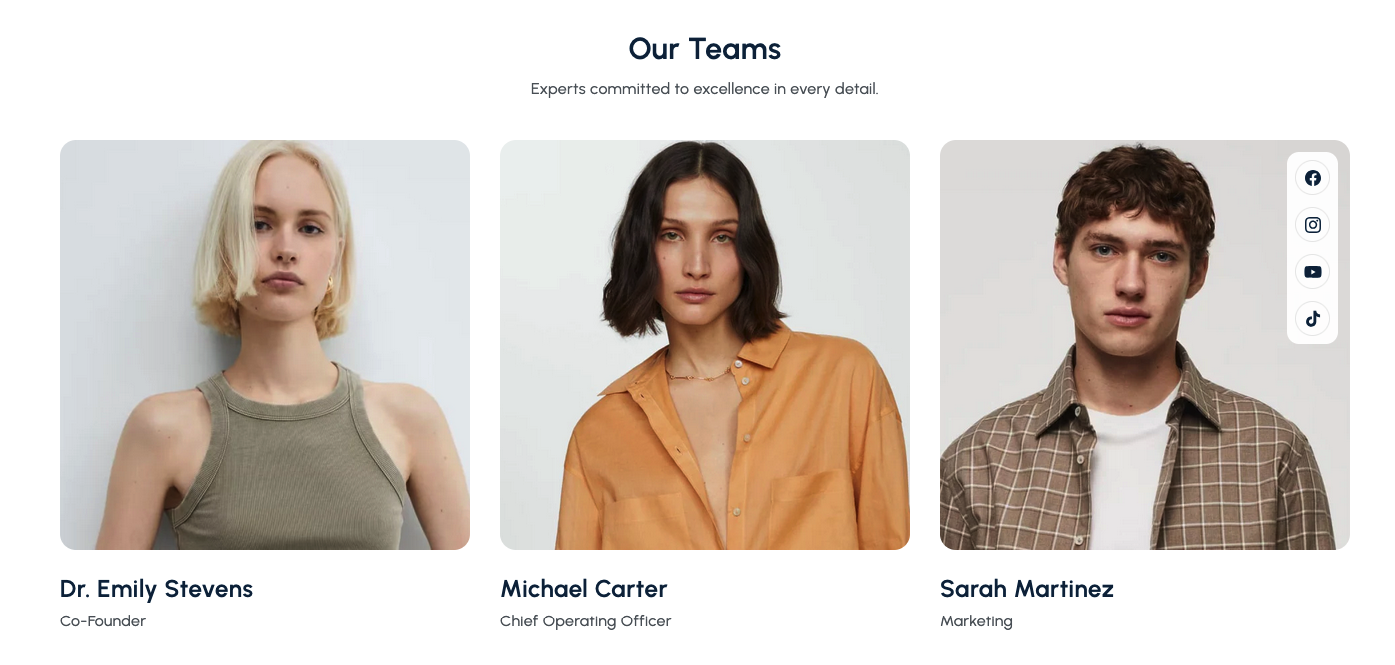
Introduce team members in a responsive grid with profile photos, roles, bios, and optional social links.
Overview
The Our Teams Section helps you showcase your staff or leadership team with polished profile cards. Each card can display a member photo, name, position, bio, and a set of social media links to build trust and humanize your brand.
How to add
Steps:
- In the theme editor (Customize), click Add section
- Select Our Teams
- Save
Section Settings
Content
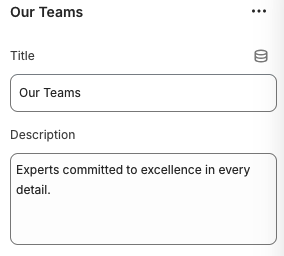
Title
- Main heading displayed above the team grid.
Description
- Optional supporting text that introduces the team or mission statement.
Layout
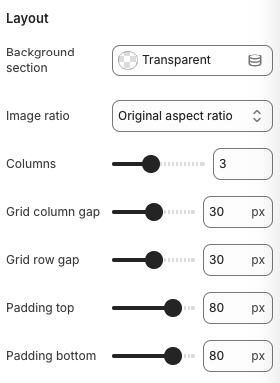
Background Section
- Select the background style (e.g., Transparent, Accent) for the entire section container.
Image Ratio
- Controls the aspect ratio for team member photos (e.g., Original aspect ratio, Square, Portrait).
Columns
- Number of team members shown per row on desktop devices.
Grid Column Gap / Grid Row Gap
- Adjust horizontal and vertical spacing between team cards.
Padding Top / Padding Bottom
- Adds vertical spacing above and below the section.
Block Settings
Team Member
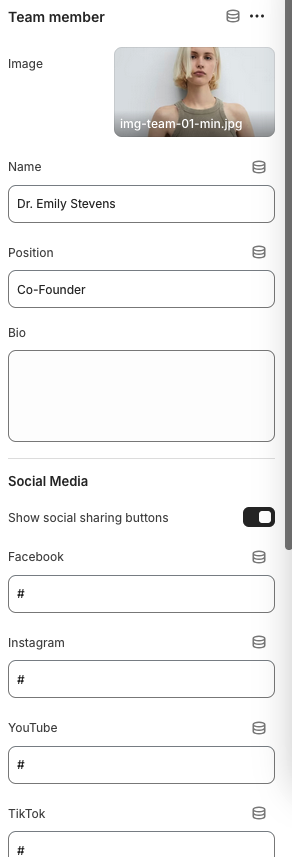
Image
- Upload the team member photo (JPG/PNG/WebP). Maintain consistent orientation across members.
Name
- Full name displayed prominently under the photo.
Position
- Job title or role within the organization.
Bio
- Optional short paragraph highlighting experience or responsibilities.
Social Media
- Enable Show social sharing buttons to reveal platform fields.
- Provide URLs for Facebook, Instagram, YouTube, TikTok, or other supported networks; leave blank to hide individual icons.
Best Practices
- Use consistent photo styles (lighting, cropping) to keep the grid cohesive.
- Keep bios concise—1–2 sentences is ideal for quick scanning.
- Adjust column count based on available profiles; avoid leaving single cards on the last row.
- When enabling social icons, link to professional profiles relevant to the team member’s role.
- Pair this section with testimonials or culture content to reinforce brand personality.
Troubleshooting
Images appear stretched
- Switch the Image Ratio to
Original aspect ratioor re-upload photos with consistent dimensions.
Social icons not showing
- Ensure the Social Media toggle is enabled and that each field contains a valid URL (including
https://).
Spacing feels off
- Tweak grid gaps and padding to balance the section within surrounding content.